In a previous tutorial, we discussed the MIT App Inventor, a popular online platform for building mobile applications using visual programming. The platform is helpful for quickly prototyping Internet-of-Things (IoT) applications and simple embedded systems that interact with mobile devices.
We already reviewed the platform’s architecture and user interface. Its visual programming platform is ideal for building beginner to intermediate mobile applications that interact over Wi-Fi or Bluetooth.
Now, we’ll use the MIT APP for mobile app development, integrating our new app with embedded electronics. In this tutorial, we’ll control an LED light using Arduino and a mobile app built using the MIT App Inventor. The mobile application will communicate with Arduino via Bluetooth using the HC-05 Bluetooth module.
To begin, we’ll build a mobile application and transmit data from it to Arduino, using Bluetooth. Next, we’ll learn how data received over Bluetooth can be used to manipulate Arduino’s circuit.
Building mobile-controlled electronics and IoT applications
When designing the circuit and firmware of the IoT device, we must also consider the mobile application. The app is the interface or medium we’ll use to control an IoT device or access its features wirelessly. So, evaluating how the microcontroller will interact with our app is important.
For example, how will the microcontroller connect with the mobile app? What data will be exchanged? What IoT features will be accessed? The mobile application development goes hand-in-hand with the firmware development. As a result, the microcontroller’s firmware must be designed per the intended interactions with the mobile app.
Additionally, it’s essential to figure out the mobile application’s functionality. What do you want it to control in terms of the IoT device? And how will its user interface behave? Once, we’re clear on the app’s functionality and user interface, we must determine the application’s logic. The IoT device will communicate data to the mobile app, or the mobile app will transmit some data to the device. In each scenario, It’s necessary to determine the type and range of data and operations to be conducted.
When building electronics or IoT applications which will be controlled via a mobile application, we must:
1. Design the circuit of the IoT device.
2. Program the device’s firmware, considering its interaction with the mobile application.
3. Build the mobile application interface.
4. Develop the mobile app’s logic based on its interaction with the device.
5. Test the device and all its interactions with the mobile application.
When using the MIT App Inventor, the interaction of the mobile application with the microcontroller will be done via Bluetooth or Wi-Fi.
Components required
To build the circuit of this application, you’ll need the following components.
- Arduino UNO/Arduino MEGA x1
- LED x1
- 330Ω Resistor x1
- HC05 Bluetooth module x1
- Breadboard x1
- Connecting wires or Dupont wires
- A smartphone
Connecting the circuit
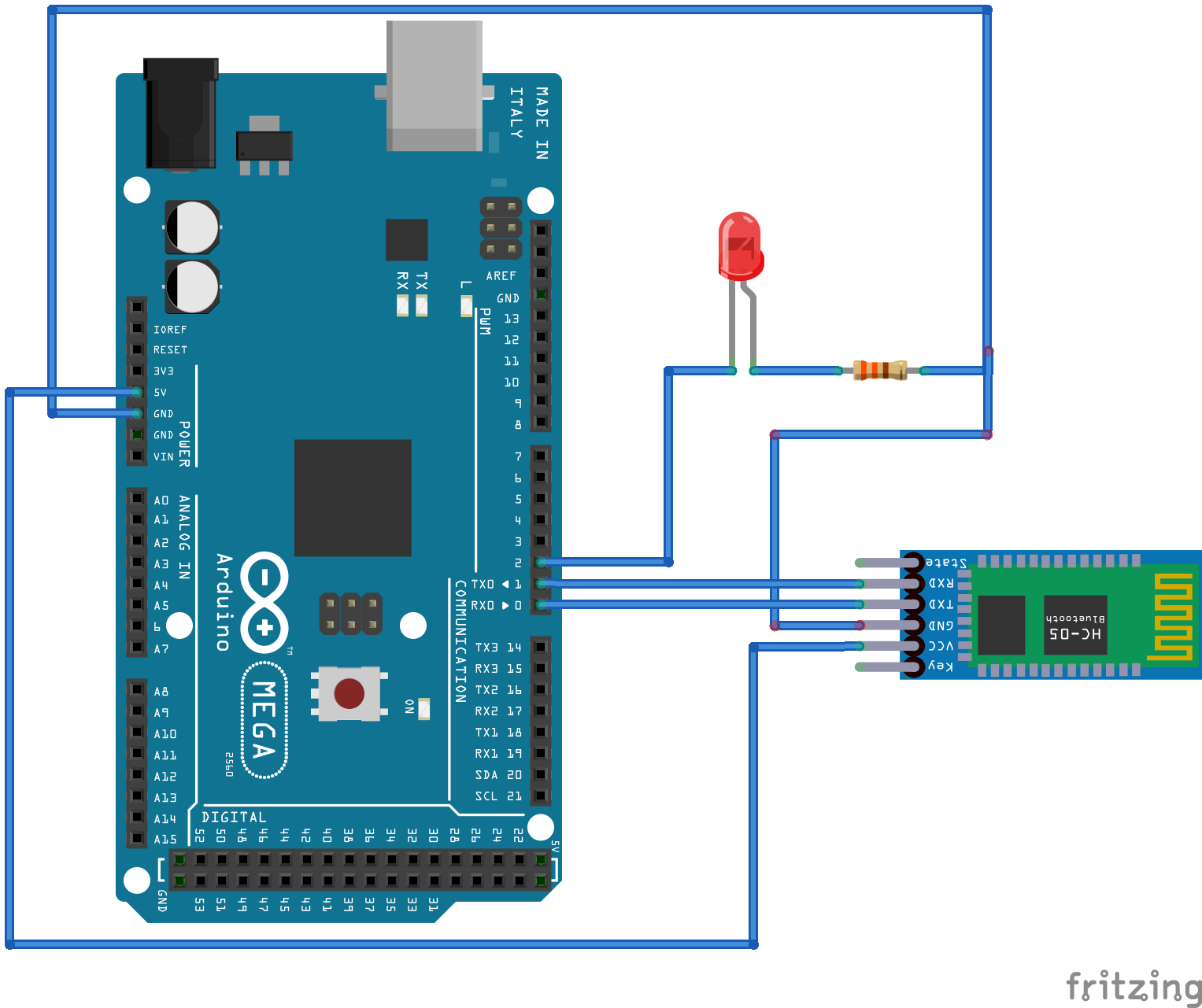
First, we must assemble the circuit for the IoT device. We’ll begin by interfacing an LED with Arduino so it can source current to the light. To do so, connect the LED’s anode with Arduino’s GPIO2 pin and connect the LED’s cathode with the ground via a series resistor of 330 ohms.
As we want to control the LED, so we’ll need to devise a way for Arduino to communicate with our mobile application. Arduino can communicate with the app (which is on a smartphone) through Bluetooth or Wi-Fi. We’ll use Bluetooth.
We’re also using Arduino UNO (or Arduino MEGA), which doesn’t have built-in Bluetooth or Wi-Fi functions. So, we need to interface the HC-05 Bluetooth module with Arduino so it can communicate with our app. To interface the HC-05 Bluetooth module with Arduino, connect the HC05 module’s RX and TX pins with Arduino’s TX (GPIO1) and RX (GPIO0), respectively. Connect the HC05 module’s VCC and GND pins with Arduino’s 5V out and ground pins, respectively.
Circuit diagram
Programming the microcontroller
When programming the microcontroller, we must consider the interaction of the mobile application with the IoT device. The app will switch the LED on Arduino ON or OFF.
The mobile application must send a data value of ‘1’ via Bluetooth whenever a user turns ON the LED and send a data value of ‘0’ via Bluetooth whenever a user turns OFF the LED.
The microcontroller’s firmware will “look” for an incoming data value or command from the Bluetooth application and set the digital output at the pin depending on if the LED is connected to HIGH or LOW (based on the incoming value).
Note that the firmware application’s logic depends entirely on the circuit design. As the LED is connected such that Arduino sources current, we must set the pin HIGH to turn ON the LED and the pin LOW to turn off the LED.
The sketch
char command = 0;
void setup(){
Serial.begin(9600);
pinMode(2, OUTPUT);
}
void loop(){
if(Serial.available() > 0){
command = Serial.read();
Serial.print(“Command Received Over Buetooth: “);
Serial.println(command);
if(command == ‘1’){digitalWrite(2, HIGH); Serial.println(“LED TURNED ON”);}
else if(command == ‘0’){digitalWrite(2, LOW); Serial.println(“LED TURNED OFF”);}
}
}
Upload this sketch before making circuit connections or remove Arduino’s VCC and GND connections with HC05 while uploading the sketch. Otherwise, you might encounter an error because the same UART port is shared between the computer and the HC05 Bluetooth module.
Building an app using the MIT App Inventor
The mobile application requires two functions to properly control the LED on Arduino. One must connect with Arduino via Bluetooth and the other must turn ON and OFF the LED.
To build the application, login to the MIT App Inventor platform and create a new project by navigating to Projects-> Start New Project.
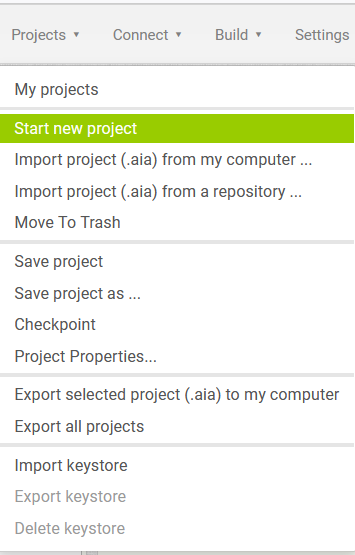
Name the project something like ‘LEDOnOff’ or ‘LEDControlBluetooth’ and click OK.

Upon creating a new project, you’ll see a blank screen. Select the screen and change the title of it, so it indicates the purpose of the application.

Now, we’ll need to build the user interface of our mobile application. The user interface lets users connect with Arduino through Bluetooth to control the LED.
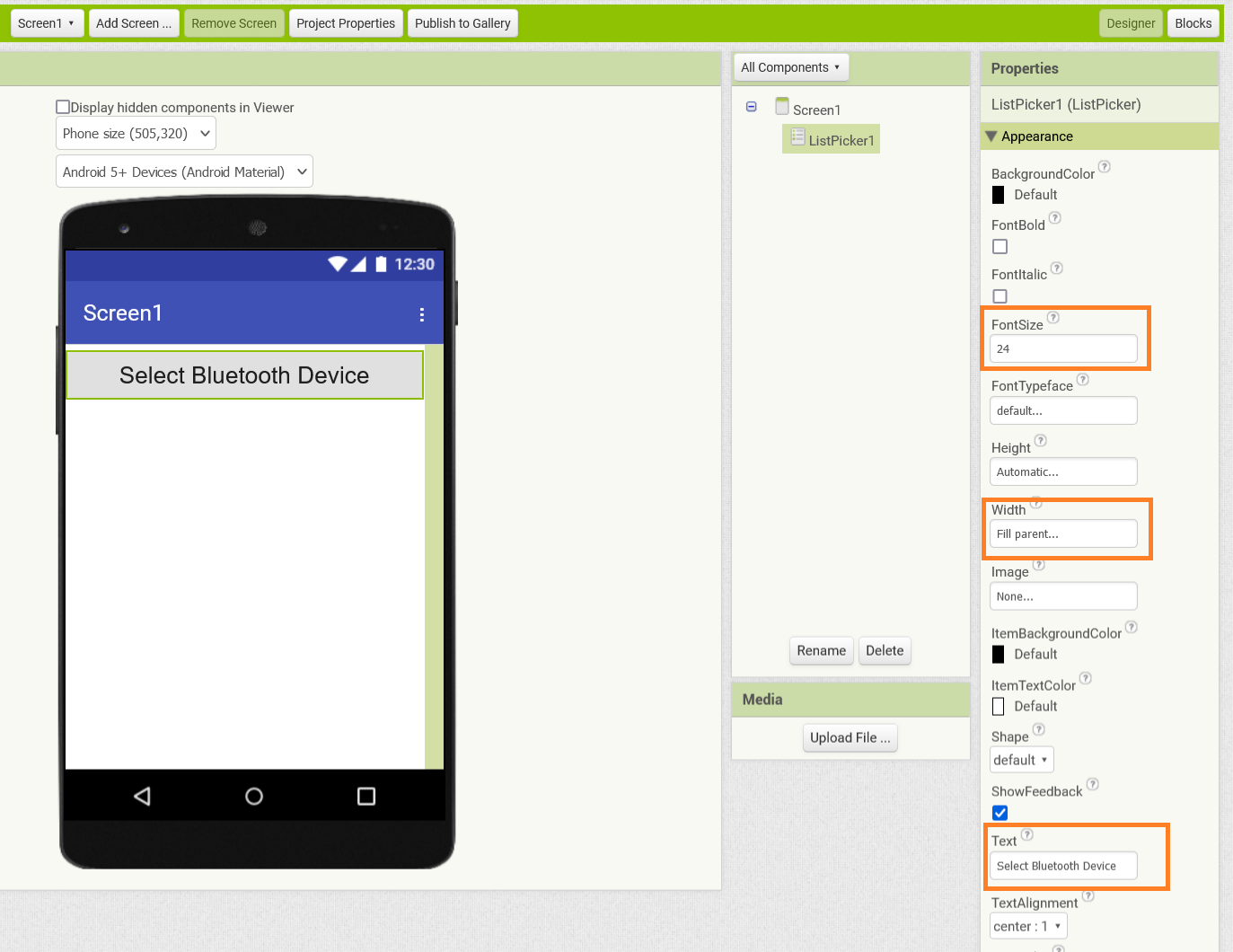
First, we must select a Bluetooth device to connect to. This is provided through a ListPicker element. Select ListPicker from the ‘User Interface’ tab and drag and drop it to Screen1.

Set the font size of ListPicker to 24 points, increase the width to fill parent, and change its text to ‘Select Bluetooth Device.’
Two buttons are required to control the LED — one to turn it ON and another to turn it OFF. These buttons can be set in a horizontal arrangement. Select ‘HorizontalArragement’ from the ‘Layout’ tab. Drag and drop it to the screen.
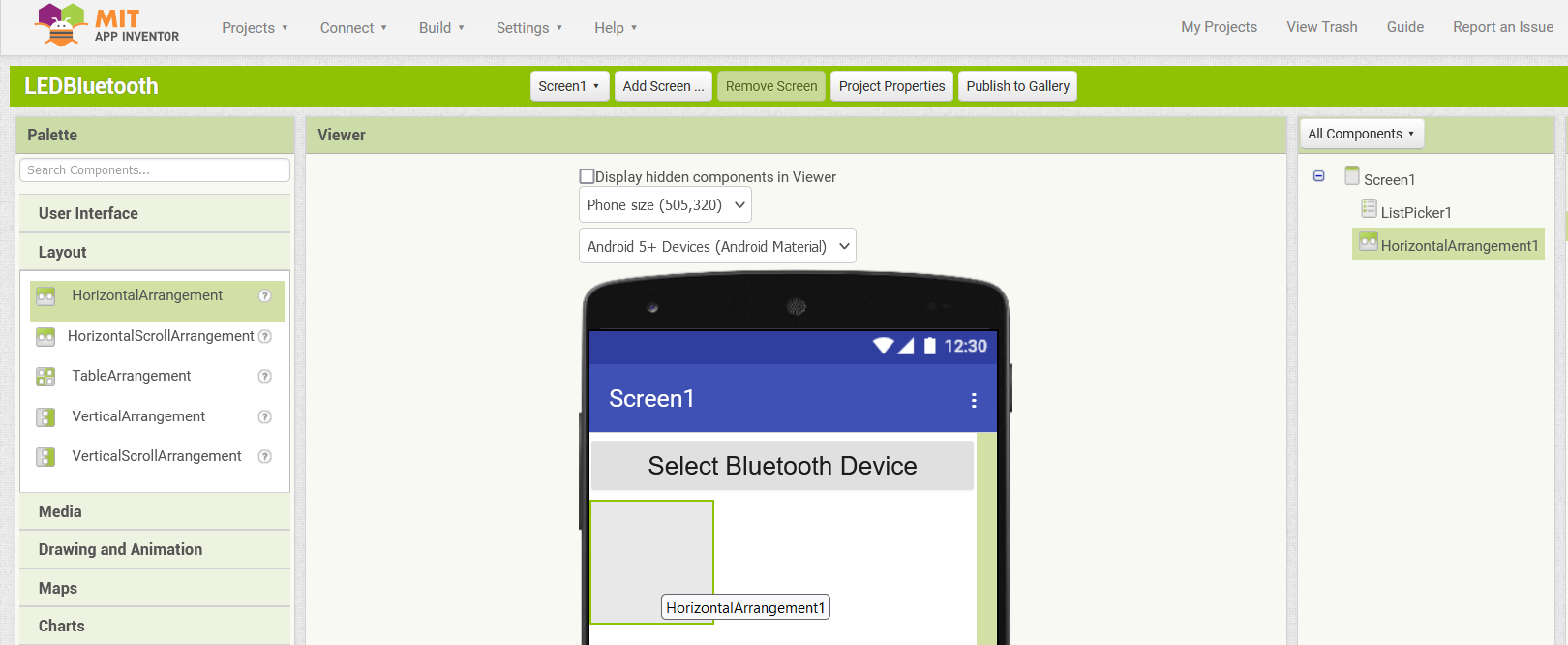
Drag and drop two buttons in the ‘HorizontalArragement.’

Change the background color of Button1 to Green, set its font size to 24 points, change the width to 50 percent of the parent, and change its text to ‘ON.’

Change the background color of Button2 to Red, set its font size to 24 points, change the width to 50 percent of the parent, and change its text to ‘OFF.’
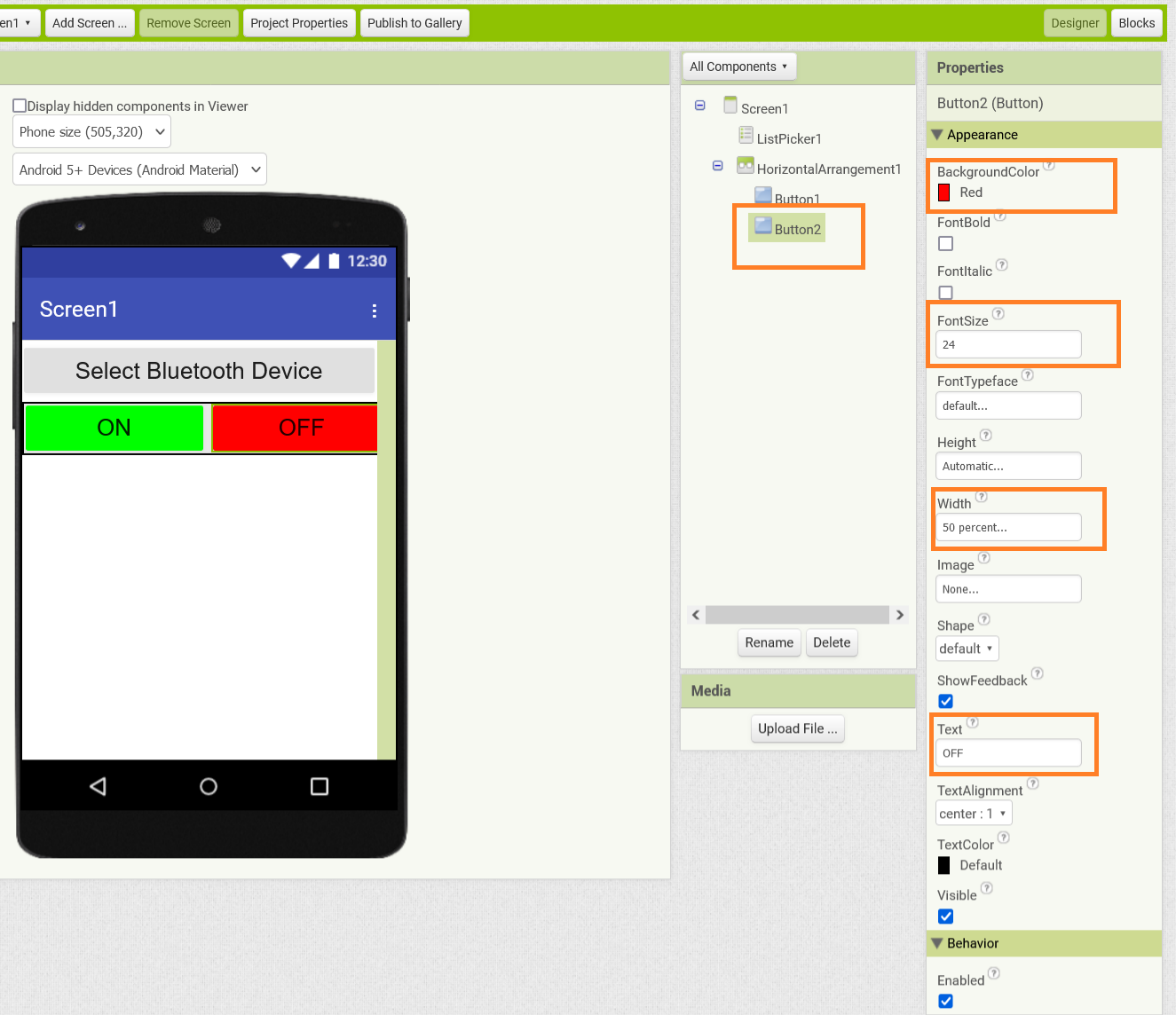
We’ll need a Bluetooth Client on the screen to enable a Bluetooth connection. Select ‘Bluetooth Client’ from the ‘Connectivity’ tab. Drag and drop it in the screen.

The Bluetooth Client appears as an invisible element in the user interface. This completes the user interface of our mobile application. It has a ListPicker to connect to a Bluetooth device (i.e., Arduino) and two buttons in a horizontal arrangement for turning the LED ON and OFF.
Now, its time to design the logic of our mobile app through visual programming. Click on the ‘Blocks’ button on the top right corner. We must implement the following logic in the application.
Now, it’s time to design the logic of the mobile application through visual programming. Click on the ‘Blocks’ button in the top right corner. It must follow this logic:
- Populate a list of available Bluetooth devices in the ListPicker for selection by the user.
- Once a user selects a Bluetooth device, the application must immediately connect to that selected Bluetooth device.
- When Button1 is clicked, the app transmits a command to turn ON the LED — a data value of ‘1’ in our case.
- When Button2 is clicked, app transmits command to turn OFF the LED — a data value of ‘2’ in our case.
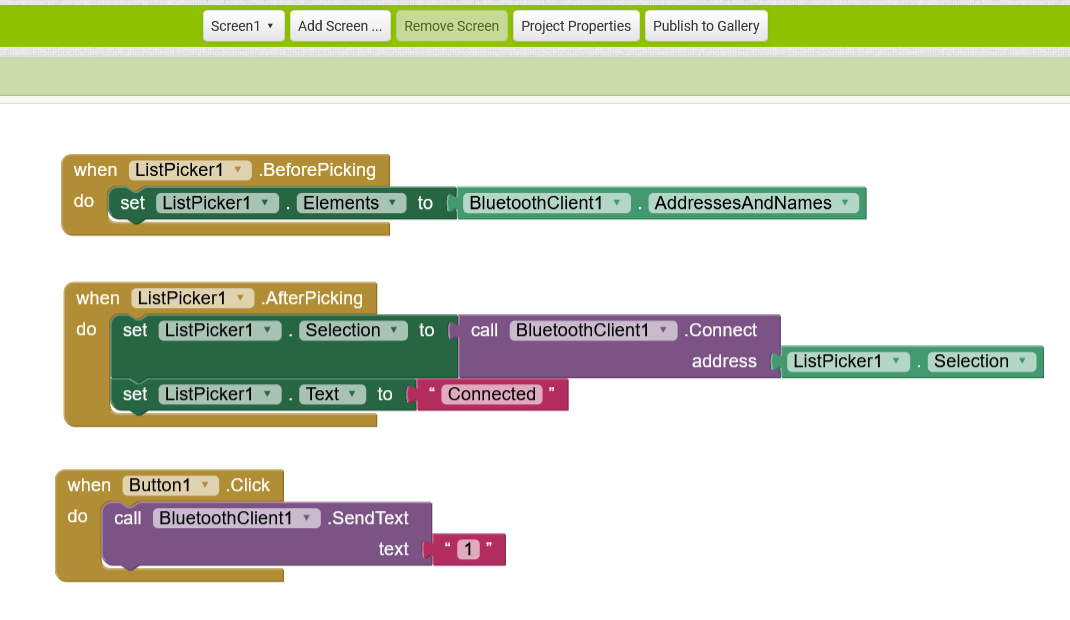
To populate the ListPicker with the available Bluetooth devices, click on ListPicker in the ‘Blocks’ tab, and select ‘When ListPicker1 BeforePicking.’ Drag it to the Viewer.
Select ‘Set ListPicker1.Elements To’ from ‘ListPicker’ and drag it to the Viewer under ‘When ListPicker1 BeforePicking.’ Next, select ‘BleutoothClient1.AddressesandNames’ from ‘BluetoothClient1’ and drag it to ‘Set ListPicker1.Elements To.’

To connect with the selected Bluetooth device, drag and drop ‘When ListPicker1.AfterPicking’ from ‘ListPicker1’ in the Viewer. Drag and drop ‘Set ListPicker1.selection To’ from ‘ListPicker1’ under ‘When ListPicker1.AfterPicking.’ Drag and drop ‘Call BluetoothClient1.Connect Address’ to ‘Set ListPicker1.selection To.’
To change the test of the ListPicker to ‘Connected,’ drag and drop ‘Set ListPicker1.Text To’ under ‘When ListPicker1.AfterPicking.’ Drag and drop ‘Text’ from ‘Text’ to ‘Set ListPicker1.Text To’ and set the text to ‘Connected.’

To turn the LED ON when clicking Button1, drag and drop ‘When Button1.click’ in the Viewer. Then, drag and drop ‘Call BluetoothClient.1 SendText Text’ to ‘When Button1.click.’ Lastly, drag and drop text from ‘Text’ and set it to ‘1’.
To turn the LED OFF by clicking Button2, drag and drop ‘When Button2.click’ in the Viewer. Then, drag and drop ‘Call BluetoothClient.1 SendText Text’ to ‘When Button2.click’. Drag and drop text from ‘Text’ and set it to ‘0’.
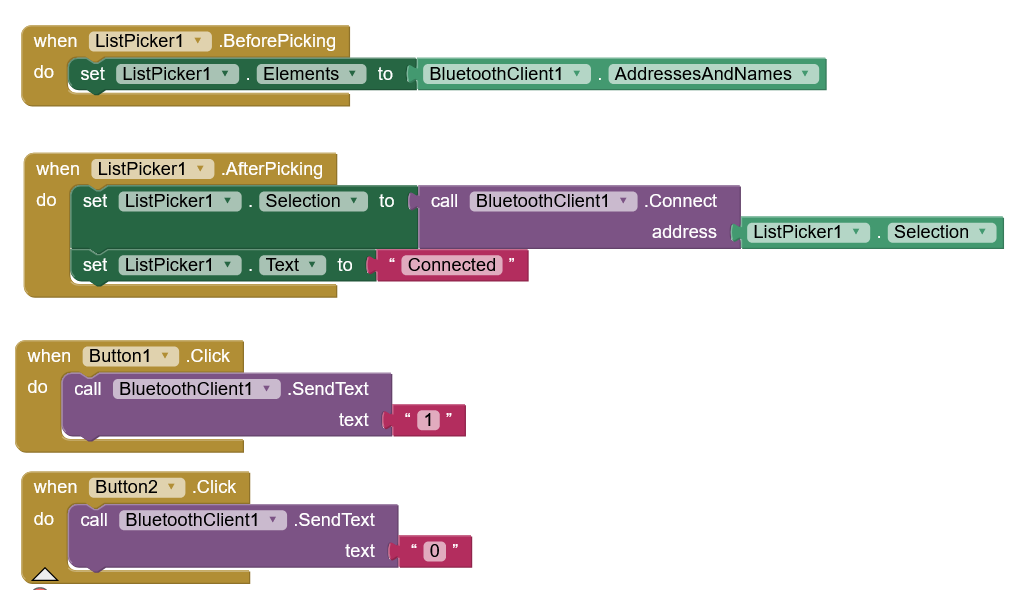
This completes the programming of our mobile app.
Testing the application
We have built the circuit of our device, programmed Arduino to interact with the mobile app, and completed our app using the MIT App Inventor. Now, it’s time to test our application.
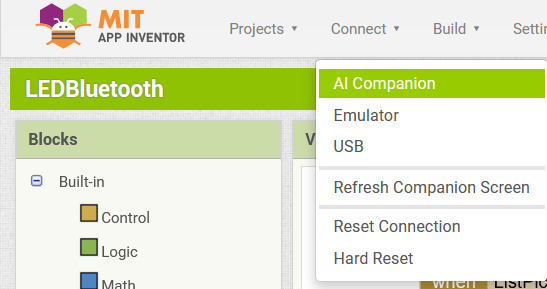
To do so, install the MIT App Companion on your smartphone. In the MIT App Inventor, navigate to Connect-> AI Companion. A window will pop up prompting you to scan a QR code or enter a code to launch the app in the MIT App Companion.
Open the MIT App Companion on your smartphone and scan the QR code or enter the presented code to launch the application.
Now, you can interact with your app! First select the Bluetooth device. After connecting with Arduino via Bluetooth, tap on the ‘ON’ and ‘OFF’ buttons to ensure they work and turn the LED ON and OFF.
The mobile application controlling the LED is demonstrated in the following video.
Conclusion
It’s fairly quick and easy to build mobile applications using MIT App Inventor. It’s a useful platform for creating apps that can interact with electronics and IoT devices. Always begin by designing the circuit of your device based on the requirements of the application. Then, co-design the microcontroller firmware and mobile app based on intended interaction between the device and the app. Have fun!
You may also like:


Filed Under: IoT tutorials, Tutorials, Video
Questions related to this article?
👉Ask and discuss on Electro-Tech-Online.com and EDAboard.com forums.
Tell Us What You Think!!
You must be logged in to post a comment.