The process of resolving bugs or defects that interferes with the proper working of a computer software or an operating system is known as Debugging. This write-up deals with the setup and use of a JTAG Debugger with ARM Cortex M3 Microcontroller. For setting up the Environment for the development of ARM cortex M3 refer this article.
The LPC 1768 is ARM Cortex- M3 based Microcontrollers for embedded application features in low power consumption and a high level of integration. The ARM Cortex M3 is designed in a such way to enhance debug features and a higher level of system integration. It clocks at a CPU frequency of 100 MHz, and incorporates a 3-stage pipeline and uses a Harvard architecture with separate local instruction and data buses for third bus peripherals. The ARM Cortex- M3 CPU have an internal pre-fetch unit to support speculative branching. The peripheral components include 512KB of flash memory, 64kb of data memory, Ethernet MAC, USB OTG, 4 UART’s, 8-channel general purpose DMA controller, 2 SSP Controllers, 10-bit DAC, Quadrature encoder interface, SPI interface, 3 I2C bus interface, 2 input plus 2 outputs I2S bus interface, 4 general purpose timers, ultra-low power Real-Time Clock (RTC) with separate battery supply, and up to 70 general purpose I/O pins, 6-output general purpose PWM. The LPC1768/66/65/64 are pin-compatible with the 100-pin LPC236x ARM7-based Microcontroller series.
The following components are used in this tutorial:
-
Debugger – Your choice
-
Controller/Board – LPC1768/Explore Cortex M3
-
IDE/Compiler – Keil
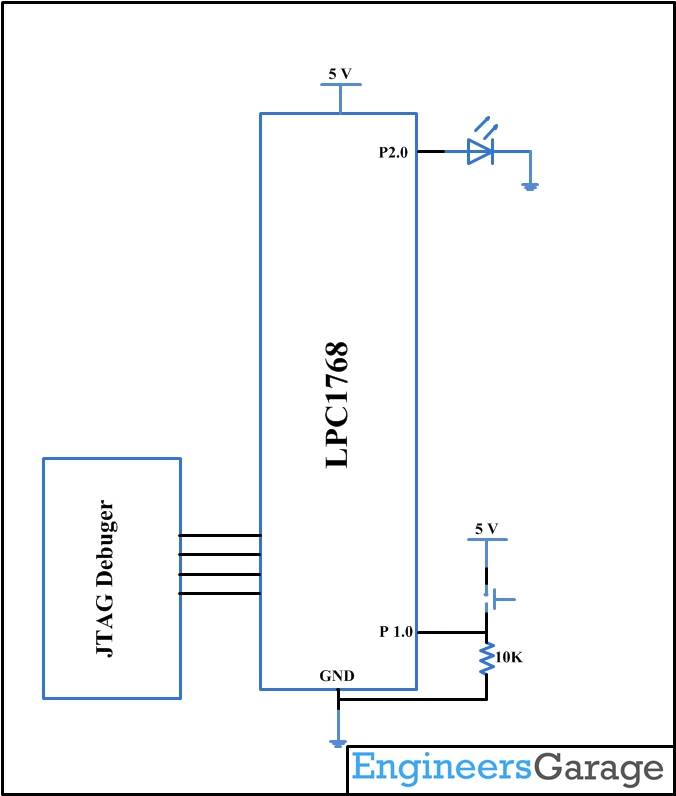
As it is well known, JTAG can be used for programming and debugging the controller. The main use of JTAG is a case where you need to work on a huge list of code. It can be used to add step and break points throughout the code. The image below shows the pin diagram of Explore ARM Cortex M3 (LPC1768). It has a ARM 20 pin JTAG connector.
Connecting the Hardware:
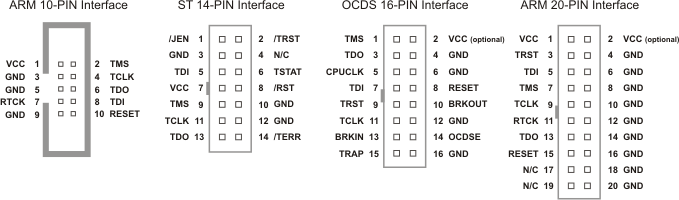
Fig. 1: Pin Diagram Of Explore ARM Cortex M3 LPC1768
It has to be noted that connecting the debugger to the board will not power it up. An external power adapter needs to be connected to the board. Once the hardware has been setup, we can move on the software part.
Selecting the Debugger
-
Click on the Projects tab and then on “Options for Target” (ATL + F7)
-
Click on the “Debug” tab
-
The default selection is “Simulator”. Change the selection to “Your Debugger name”.
-
Click on “OK” to proceed
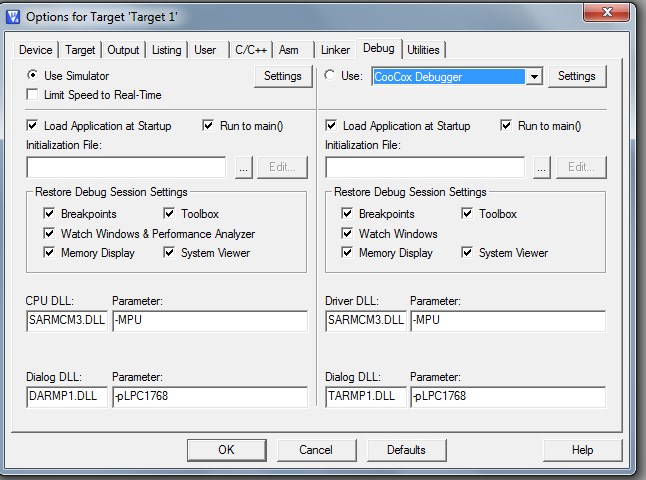
Fig. 2: Selecting The Debugger
Debug Options for NXP LPC1768:
Now, select the Debug tab. On the right pane of the current window, you will find a radio button called “Use”. From the drop down list, select the name of the debugger that you are using.
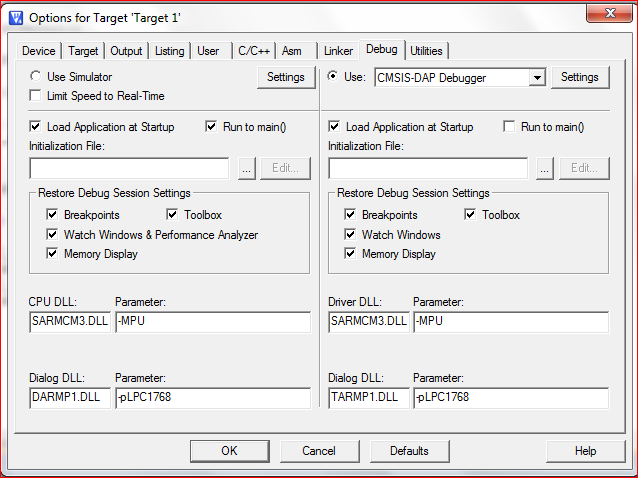
Fig. 3: Debug Options For NXP LPC1768
Utilities Option for the NXP LPC1768:
Click on the “Utilities” tab and you will see a window as shown below.
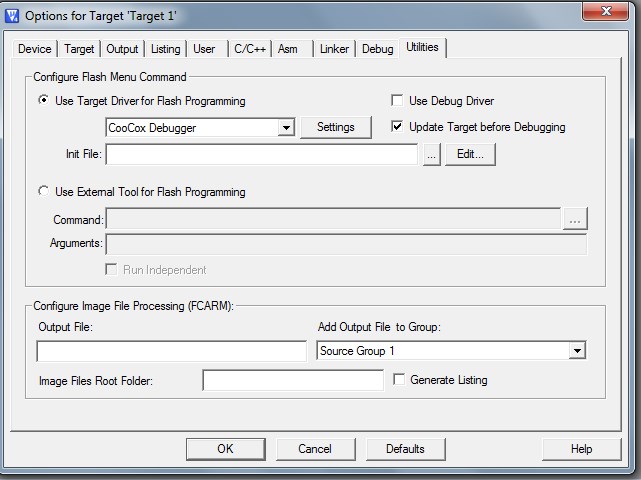
Fig. 4: Utilities Option For The NXP LPC1768
Select the same debugger which you choose in the previous window. The “Settings” button in this window will show the same options as that from the Debug window. It is highly recommended that the Debug and Utilities options are configured before proceeding to the “Settings”.
Debug/Utilities Settings using the NXP LPC1768:
Click on the “Settings” key and confirm the Debug tab to obtain the window as shown below.
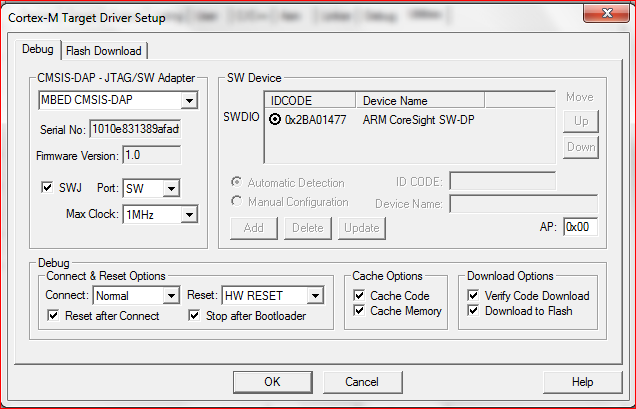
Fig. 5: Debug/Utilities Settings Using The NXP LPC1768
Notes:
-
The settings under the “Debug” and “Utilities” tabs need to be configured before confirming the settings.
-
The link and target should be present to see these options.
-
The option “Stop after Bootloader” should be chosen.
Flash Download Options for the NXP LPC1768:
Under the “Flash Download” tab, confirm the options as shown below. If desired, select the checkbox “Reset and Run”.
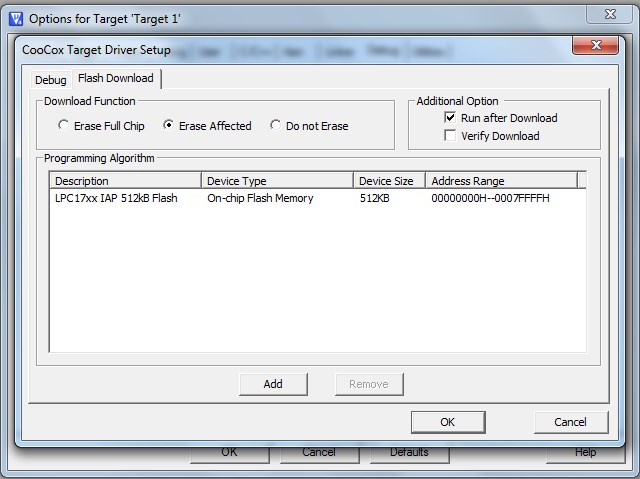
Fig. 6: Flash Download Options For The NXP LPC1768
If the space under “Programming Algorithm” is blank, select “ADD” and then select a name from the list displayed below.
Debug programs:
Invoke the debugger
-
Click on the Magnifying glass in the toolbar.
Debug on/off icon
-
If the “EVALUATION” mode of MDK is being used, the message shown below will appear. Click on “OK”.
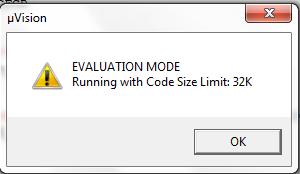
Fig. 7: Evaluation Mode Dialouge Box
Message with Evaluation MDK
3.The Debugger will then perform the following steps:
.Erase the Flash
.Download the code
.Reset the microcontroller and run to either the address Reset_Handler or “main” depending upon options which were set in the configuration. A possible window log will be as shown below:
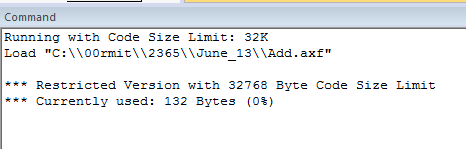
Fig. 8: Command Log On Invoking The Debugger
Command log on invoking the debugger
4.Next, the debugging screen will appear.

Debugger run options
Fig. 10: Debugger Run Options
Debugger run options
There are 7 run options:
-
Reset microcontroller
-
Run the microcontroller normally
-
Stop debugging
-
Single step one instruction at a time
-
Skip over functions
-
Skip out of functions
-
Run to cursor
A typical debugging session may consist of the following steps:
-
Enter Debug mode – the debugger will run to the address Reset_Handler (or “main” if selected in configuration)
-
Click on the cursor at a line of source code to start the investigation
-
Click on the 7th option to run the program to the cursor. All the register changes will be highlighted.
-
Click on the Centre icon in order to single step the code as required.
-
If single stepping enters into a loop, use the 6th key to step out of that function.
-
If further investigation is not required, use the second key to run at full speed.
-
To halt, use the 3rd key.
-
To restart the entire sequence, use the first key
-
To exit the debug session, select the magnifying glass which is present on the main toolbar.
Breakpoints
Fig. 11: Breakpoint Icons
There are 4 breakpoint icons:
-
Place a breakpoint at the current cursor position. This will be shown as a red dot.
-
A running program will stop at the breakpoint
-
If the breakpoint is in a loop restarting the program, it will halt at the breakpoint on the next pass.
-
Toggle: Disable/Re-enable a breakpoint at the cursor. Disabled breakpoints will be represented as an open circle.
-
Disable all breakpoints: they will be represented as open circles. These may be individually re-enabled.
-
Kill all breakpoints: all the breakpoint positions will be removed.
Watch Window
A number of windows can be enabled or disabled using the icons on the toolbar.
Fig. 12: Options For Debugger On Windows
Windows display options for the debugger
The windows that can be enabled or disabled are:
-
Comman window. (Shown by default)
-
Disassembly window. (Shown by default)
-
Symbol window (Hidden by default)
-
Register window (Shown by default)
-
Call Stack Window (Shown by default)
-
Watch windows(Hidden by default)
-
Memory Windows (Shown by default)
Notes:
-
When Call stack, Memory and Watch are enabled, they will appear on the bottom right hand pane.
-
When selected, the symbol window will appear as shown below:
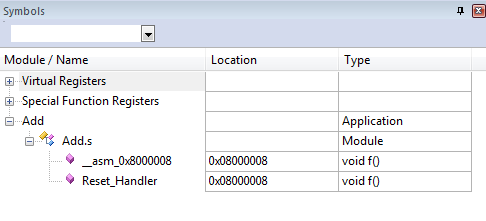
Fig. 13: Symbols Window
You may also like:



Circuit Diagrams
Filed Under: ARM, Tutorials
Questions related to this article?
👉Ask and discuss on EDAboard.com and Electro-Tech-Online.com forums.
Tell Us What You Think!!
You must be logged in to post a comment.